Vous devez disposer d'un certificat SSL
Création du dossier de logs : ``` mkdir /var/log/httpd/logs/ -p ``` Nous avons terminé de configurer GitLab ! il ne reste plus qu'à les appliquer : ``` # Attention, cette commande est longue ! (Allez prendre un café !) # # gitlab-ctl reconfigure ``` Puis, nous activons notre configuration apache : ``` a2ensite gitlab systemctl reload apache2 ``` Nous allons désactiver l'indexation de notre GitLab (optionnel) : ``` nano /opt/gitlab/embedded/service/gitlab-rails/public/robots.txt ``` Nous allons décommenter les deux lignes suivantes : ``` User-Agent: * Disallow: / ```Décommenter signifie retirer le # au début de la ligne
Nous pouvons maintenant nous rendre sur [https://gitlab.nehemiebarkia.fr](https://gitlab.nehemiebarkia.fr) : [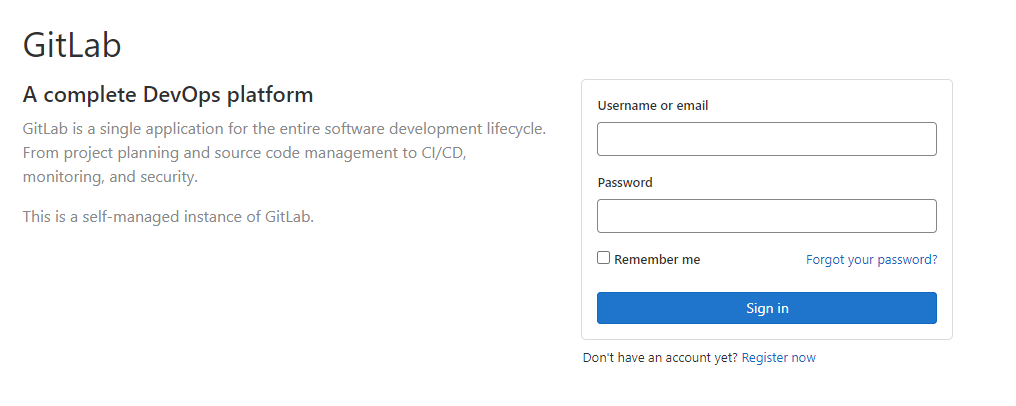](https://docs.nehemiebarkia.fr/uploads/images/gallery/2021-07/image-1627476111073.png) Modification du mot de passe du compte administrateur de gitlab : ``` # Cette commande va nous permettre d'accèder à la console de gitlab # # Attention, c'est une commande assez longue. Patienter pour avoir accès à la console. gitlab-rails console -e production ``` ``` # Nous changons le mot de passe du compte surperadmin (root) et mettons : secret-pass # # user = User.find_by_username 'root' user.password = 'secret-pass' user.password_confirmation = 'secret-pass' user.send_only_admin_changed_your_password_notification! user.save! user.skip_reconfirmation! ```Vous pouvez maintenant vous connecter sur votre GitLab !
### Installation des exécuteurs Docker : Dans un premier temps, nous allons déterminer quel est notre architecture linux : ``` uname -m ``` Grâce à cette commande je sais que mon architecture est en x86\_64. Téléchargement du fichier binaire : ``` # Linux x86-64 sudo curl -L --output /usr/local/bin/gitlab-runner "https://gitlab-runner-downloads.s3.amazonaws.com/latest/binaries/gitlab-runner-linux-amd64" # Linux x86 sudo curl -L --output /usr/local/bin/gitlab-runner "https://gitlab-runner-downloads.s3.amazonaws.com/latest/binaries/gitlab-runner-linux-386" # Linux arm sudo curl -L --output /usr/local/bin/gitlab-runner "https://gitlab-runner-downloads.s3.amazonaws.com/latest/binaries/gitlab-runner-linux-arm" # Linux arm64 sudo curl -L --output /usr/local/bin/gitlab-runner "https://gitlab-runner-downloads.s3.amazonaws.com/latest/binaries/gitlab-runner-linux-arm64" # Linux s390x sudo curl -L --output /usr/local/bin/gitlab-runner "https://gitlab-runner-downloads.s3.amazonaws.com/latest/binaries/gitlab-runner-linux-s390x" ```Choisissez la commande liée à VOTRE architechture !
On rend le binaire exécutable : ``` sudo chmod +x /usr/local/bin/gitlab-runner ``` Ajout du compte linux pour CI : ``` sudo useradd --comment 'GitLab Runner' --create-home gitlab-runner --shell /bin/bash ``` Installer et exécuter en tant que service : ``` sudo gitlab-runner install --user=gitlab-runner --working-directory=/home/gitlab-runner sudo gitlab-runner start ``` Déclaration des exécuteurs : ``` sudo gitlab-runner register ```Cette commande, va vous poser plusieurs questions. Voici mes réponses : Enter the GitLab instance URL (for example, [https://gitlab.com/): ](https://gitlab.com/):) [https://gitlab.nehemiebarkia.fr](https://gitlab.nehemiebarkia.fr) Enter the registration token : XXXXXXXXX // Je ne vais pas vous donner mon token mais vous trouverez le votre dans les paramètres gitlab (/settings/ci\_cd) Enter an executor: docker+machine, kubernetes, custom, docker-ssh, parallels, virtualbox, docker-ssh+machine, docker, shell, ssh : docker Enter the default Docker image (for example, ruby:2.6) : php:latest
Le runner est désormais disponible : [](https://docs.nehemiebarkia.fr/uploads/images/gallery/2021-07/image-1627561984581.png)Il ne faut surtout pas oublier d'installer docker : https://docs.nehemiebarkia.fr/books/installations/page/installer-docker
### Configuration de postfix Ajout d'un certificat SSL à Postfix : ``` sudo dpkg-reconfigure postfix ``` On choisi "Internet Site ; Puis on précise notre FQDN, dans mon cas "nehemiebarkia.fr". En-suite on entre "root". Puis on laisse les données pré-entrées. En suite on répond non à "Force syncronus update on mail queue ?". Et enfin, nous laissons les choix pré-entrés pour toute les autes questions. Configuration des mailboxs : ``` sudo postconf -e 'home_mailbox = Maildir/' ``` Définition du domaine : ``` sudo postconf -e 'mydomain = nehemiebarkia.fr' ``` Définition des certificats SSL : ``` sudo postconf -e 'smtpd_tls_cert_file = /etc/letsencrypt/live/nehemiebarkia.fr/fullchain.pem' sudo postconf -e 'smtpd_tls_key_file = /etc/letsencrypt/live/nehemiebarkia.fr/privkey.pem' ```Vous devez disposer du logiciel certbot pour avoir de tels certificats. Référez-vous à leurs documentation pour avoir des certificats !
Configuration de l'authentification SMTP : ``` sudo postconf -e 'smtpd_sasl_type = dovecot' sudo postconf -e 'smtpd_sasl_path = private/auth' sudo postconf -e 'smtpd_sasl_local_domain =' sudo postconf -e 'smtpd_sasl_security_options = noanonymous' sudo postconf -e 'broken_sasl_auth_clients = yes' sudo postconf -e 'smtpd_sasl_auth_enable = yes' sudo postconf -e 'smtpd_recipient_restrictions = permit_sasl_authenticated,permit_mynetworks,reject_unauth_destination' ``` Définition des aliases : ``` sudo postconf -e 'virtual_alias_domains = nehemiebarkia.fr' sudo postconf -e 'virtual_alias_maps = hash:/etc/postfix/virtual' ``` Création du fichier d'aliases : ``` sudo nano /etc/postfix/virtual ``` ``` postmaster@nehemiebarkia.fr root root@nehemiebarkia.fr root ``` Génération de la base de donnée des aliases : ``` sudo postmap /etc/postfix/virtual ``` Redémarrage de postfix : ``` sudo systemctl restart postfix ``` ### Configuration de dovecot Configuration des boites mails : ``` sudo maildirmake.dovecot /etc/skel/Maildir sudo maildirmake.dovecot /etc/skel/Maildir/.Drafts sudo maildirmake.dovecot /etc/skel/Maildir/.Sent sudo maildirmake.dovecot /etc/skel/Maildir/.Trash sudo maildirmake.dovecot /etc/skel/Maildir/.Templates ``` Exemple de configuration d'une boite mail **pour un utilisateur non root** : ``` sudo cp -r /etc/skel/Maildir /home/$USER/ sudo chown -R $USER:$USER /home/$USER/Maildir sudo chmod -R 700 /home/$USER/Maildir sudo adduser $USER mail ```Remplacez $USER avec l'utilisateur concerné !
Définition de la localisation des boites mail : ``` echo 'export MAIL=~/Maildir' | sudo tee -a /etc/bash.bashrc | sudo tee -a /etc/profile.d/mail.sh ``` Modification des fichiers de configuration : ``` sudo nano /etc/dovecot/conf.d/10-auth.conf ``` ``` disable_plaintext_auth = yes ... auth_mechanisms = plain login ``` Définition de l'emplacement des boites mails : ``` sudo nano /etc/dovecot/conf.d/10-mail.conf ``` ``` mail_location = maildir:~/Maildir ``` Activation d'SSL ``` sudo nano /etc/dovecot/conf.d/10-master.conf ``` ``` service imap-login { inet_listener imap { port = 143 } inet_listener imaps { port = 993 ssl = yes } ... } service pop3-login { inet_listener pop3 { port = 110 } inet_listener pop3s { port = 995 ssl = yes } ... } ... service auth { ... # Postfix smtp-auth unix_listener /var/spool/postfix/private/auth { mode = 0660 user = postfix group = postfix } ``` ``` sudo nano /etc/dovecot/conf.d/10-ssl.conf ``` ``` # SSL/TLS support: yes, no, required.